<Only for model with wireless LAN, Bluetooth, and/or wireless WAN>
There are several ways of disabling and enabling wireless communication.
Disabling/Enabling Wireless Communication |
NOTE
- For further information about Wireless LAN.
- For further information about Bluetooth.
- For further information about Wireless WAN.
- The wireless communication can be enabled or disabled by connecting or disconnecting the LAN cable.
(
 Wireless Connection Disable Utility) Wireless Connection Disable Utility)
To check the wireless communication status
NOTE
- The Wireless Switch Utility icons indicate the on/off status of wireless communication, not the IEEE802.11a setting.
- If the IEEE802.11a setting is changed in [Device Manager], the display will be changed accordingly.
- To use wireless communication, set the wireless devices ([Wireless LAN] / [Bluetooth] / [Wireless WAN]) to [Enabled] (default) in the [Advanced] menu of the Setup Utility (
Wireless Configuration).Wireless Switch Utility
This utility allows you to enable or disable wireless devices from a pop-up menu in the notification area. In the default setting, all wireless devices are enabled.
The Wireless Switch Utility icon
The icon appears when click
 on the notification area. It shows the status of wireless devices.
To enable or disable particular wireless devices
Wireless Connection Disable Utility
You can automatically disable the wireless LAN/wireless WAN connection when a LAN cable is connected to your computer.
You need to install the Wireless Connection Disable Utility to use this function.
Installing the utility
Checking the status of the wireless connectionNOTE
- The Wireless Switch Utility should also be installed so that the Wireless Connection Disable Utility works.
The Wireless Switch Utility has already been installed at the factory.
- To use the utility, set [Wireless LAN] / [Bluetooth] / [Wireless WAN] to [Enabled] (default) in the [Advanced] menu of the Setup Utility (
Wireless Configuration).- The utility does not automatically disable the Bluetooth connection.
Status indication
After installation, the Wireless Connection Disable Utility is automatically started after a user is logged in.
An icon appears when click
on the notification area. : Indicates that : Indicates that
 : Indicates that : Indicates that
 : Indicates one of the following statuses; : Indicates one of the following statuses;
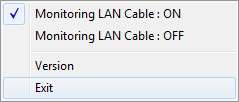
Menu
Right-clicking the utility icon opens a menu as follows.
|
 (Start) - [All Programs] - [Intel PROSet Wireless] - [WiFi Advanced Statistics].
 or
or  ).
). : Indicates that the wireless devices have been disabled in the Setup Utility.