|
<Only for model with wireless LAN, Bluetooth, and/or wireless WAN>
There are several ways of disabling and enabling wireless communication.
NOTE
The Wireless Switch
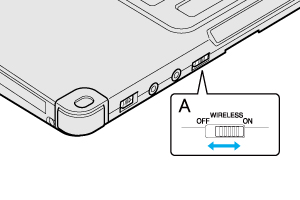
- To disable all wireless communication, slide the wireless switch (A) to OFF.
- To enable wireless communication, slide the wireless switch (A) to ON.
- In the default setting, the wireless switch enables all wireless devices when it is set to ON.
NOTE
- Do not turn on/off the switch repeatedly at too short intervals.
- Do not restart, log off, or enter sleep or hibernation immediately after turning on/off the switch.
- Do not turn on/off the switch while Windows is starting up.
- To use wireless communication, set the wireless devices ([Wireless LAN] / [Bluetooth] / [Wireless WAN] of [Wireless Configuration]) to [Enabled] (default) in the [Advanced] menu of the Setup Utility (  Wireless Configuration Wireless Configuration). - It may take some time to turn off wireless communication after switching the wireless switch off.
Using airplane mode 
(For wireless LAN, wireless WAN and Bluetooth)
- Click [Charm] -
 - [Change PC Settings] - [Wireless]. - [Change PC Settings] - [Wireless].
- Set [Airplane mode] to [Off], and then;
- set [Wi-Fi] in “Wireless device” to [On] (for wireless LAN).
- set [Mobile broadband] to [On] (for wireless WAN).
- set [Bluetooth] to [On] (for Bluetooth).
To check the wireless communication status 
- Click
 on the notification area and place the cursor over the Wireless Switch Utility icon ( on the notification area and place the cursor over the Wireless Switch Utility icon (  or
or  ).
).
A tooltip appears.
The Wireless Switch Utility icon
The icon appears when click
on the notification area. It shows the status of wireless devices.
- : Indicates that the wireless devices are
enabled.
- : Indicates that the wireless devices are
off.
 : Indicates that the wireless devices have
been disabled in the Setup Utility.
: Indicates that the wireless devices have
been disabled in the Setup Utility.
NOTE
- If you uninstall the Wireless Switch Utility, set the wireless switch to ON beforehand.
- When you set [Wireless Switch] of [Wireless Configuration] to [Disabled] in the [Advanced] menu of the Setup Utility, the Wireless Switch Utility icon will not appear if you click on the notification area. All wireless equipment (wireless LAN, Bluetooth, wireless WAN) will remain ready irrespective of the wireless switch setting. - You can check the wireless LAN communication status in Intel ® PROSet/Wireless Software. Perform the following procedure.
Click  (Start) - [All Programs] - [Intel PROSet Wireless] - [WiFi Advanced Statistics].
Wireless Switch Utility
This utility allows you to control the function of the wireless switch.
This utility also allows you to enable or disable wireless devices from a pop-up menu. In the default setting, all wireless devices are enabled.
To enable or disable particular wireless devices
- Click the Wireless Switch Utility icon to show the pop-up menu.
- Select ON or OFF for the device you want to enable or disable.
To change the function of the wireless switch
In the default setting, the wireless switch enables devices that you select turning the wireless switch off last time. You can change this function.
|
 : Indicates that
 : Indicates that
 : Indicates one of the following statuses;
